How to Automate Document Workflow - A Complete 2026 Guide
Automate document workflows in 2025. Learn how to remove manual handoffs, speed up approvals, and keep documentation accurate with practical, real-world examples.
Documents pile up fast. Contracts need signatures, proposals need approval, onboarding packets need review. Across every industry—whether you're in HR, sales, engineering, or operations—documents move through your team constantly. And when those workflows rely on manual handoffs, things slow down, mistakes creep in, and important files get lost in email threads or forgotten folders.
Document workflow automation provides a practical solution. It removes the repetitive tasks, speeds up approvals, and keeps your documentation accurate and accessible. In this guide, we'll walk through what document workflow automation is, why it matters, and exactly how to implement it in your organization—with real examples you can use today.
What is document workflow automation?
Document workflow automation is the process of using software to handle the creation, routing, approval, and storage of documents without manual intervention. Instead of someone manually creating a document, emailing it to the right person, waiting for feedback, and tracking it through multiple versions, automation handles these steps automatically.
The key pieces of document workflow automation include:
- Automated routing – Documents automatically go to the right people at the right time based on predefined rules
- Template systems – Pre-built document formats that auto-populate with the correct data
- Smart notifications – Alerts that tell people when action is needed, without overwhelming them
- Tool integrations – Connections between your document system and other tools like CRMs, project management software, or communication platforms
Why automate your document workflows?
The benefits of document workflow automation go beyond just saving time. Here are five key reasons why teams are making the switch:
1. Teams save hours on repetitive tasks
When you automate document creation and routing, your team stops spending time on copy-paste work. One Premium Plus customer reported saving over 10 hours per week just by automating their weekly status reports and project documentation. That time gets redirected to higher-value work like strategy, customer conversations, and product development.
2. Collaboration improves when everyone knows what's happening
Automated workflows create transparency. When a document moves through your system, everyone involved can see its status. No more "Did you get my email?" or "Where are we on that contract?" questions. The system tracks everything, and team members get notified exactly when they need to take action.
3. Security and compliance are easier to maintain
Automated workflows enforce consistent security rules. You can set permissions so only authorized people access sensitive documents, create audit trails that track every change, and ensure compliance requirements are met automatically. This is especially critical for industries like healthcare, finance, and legal services where regulatory compliance isn't optional.
4. Finding documents takes seconds
With automation, documents are stored in predictable locations with consistent naming conventions and metadata. Instead of searching through email attachments or shared drives, you can find what you need with a quick search. Tags, categories, and automated filing make retrieval instant.
5. You can see exactly where any document stands
Automated workflows provide real-time visibility. You can check the status of any document—whether it's in draft, under review, approved, or archived—without asking anyone. This visibility helps managers spot bottlenecks, track team productivity, and make data-driven decisions about process improvements.
Types of document workflows you can automate by department
Different departments have different documentation needs. Here's a breakdown of common workflows you can automate across your organization:
| Department | Workflow Type | Example Automation |
|---|---|---|
| HR | Onboarding | Auto-generate offer letters, employment contracts, and welcome packets when a candidate is marked as hired in your ATS |
| HR | Performance Reviews | Schedule review cycles, send reminder emails, and compile feedback into structured documents automatically |
| Sales | Proposals | Pull customer data from your CRM to create customized proposals with accurate pricing and terms |
| Sales | Contracts | Route contracts to legal for review, then to finance for approval, then to the customer for signature—all automatically |
| Marketing | Content Briefs | Generate content briefs from keyword research data and route them to writers based on availability |
| Marketing | Campaign Reports | Pull metrics from analytics tools and create formatted reports on a weekly or monthly schedule |
| Engineering | Release Notes | Compile commit messages, pull requests, and issue resolutions into formatted release documentation |
| Engineering | Technical Specs | Create spec templates that auto-populate with project details from your project management tool |
| Customer Success | Onboarding Guides | Generate personalized onboarding documentation based on the customer's plan and use case |
| Customer Success | QBRs | Pull usage data, support tickets, and account health metrics into quarterly business review decks |
| Finance | Invoices | Auto-generate invoices from billing data and send them to customers on schedule |
| Finance | Expense Reports | Compile expense submissions, route for approval, and update accounting systems automatically |
| Operations | SOPs | Create and update standard operating procedures based on process changes tracked in your workflow tools |
| Operations | Incident Reports | Generate incident documentation from monitoring alerts and team communications during outages |
How to automate document workflows in 4 steps
Ready to get started? Here's a practical, step-by-step approach to implementing document workflow automation in your organization.
Step 1: Audit your current processes and pinpoint bottlenecks
Before you automate anything, you need to understand what's actually happening now. Map out your current document workflows by answering these questions:
- Who creates the document?
- What data or information is needed to create it?
- Who needs to review or approve it?
- Where is it stored when it's done?
- Where do delays typically happen?
Talk to the people who actually do the work. They'll tell you where the pain points are—whether it's waiting for approvals, hunting down information, or reformatting the same document over and over. These bottlenecks are your automation opportunities.
Step 2: Create a knowledge base to capture your corpus
Before you can automate document creation, you need a reliable source of truth. This means building a knowledge base that contains all the information your automated workflows will pull from. Your knowledge base should have:
- Clear structure and formatting – Consistent headings, sections, and data formats make it easier for automation tools to extract the right information
- Defined ownership – Every document should have a clear owner responsible for keeping it up to date
- Simple tags or categories – Metadata helps automation tools find and use the right content
Think of your knowledge base as the foundation. If the information there is messy or outdated, your automated documents will be too. Consider implementing verification workflows where subject matter experts review and approve content before it goes into the knowledge base.
Step 3: Choose an automation tool and connect your data sources
Now you need to pick the right automation platform. The good news is you don't need to build everything from scratch. Several tools make document workflow automation accessible:
- Zapier – User-friendly, no-code platform with thousands of pre-built integrations
- n8n – Open-source automation tool with more flexibility and control
- Make – Visual automation builder with powerful data transformation capabilities
- AI assistants or custom scripts – For more complex workflows or unique requirements
Once you've chosen a tool, connect it to your data sources. This might include your CRM, project management system, HR platform, or knowledge base. Most modern tools offer API integrations or native connectors that make this straightforward.
Step 4: Build a template and create your automation
Now comes the fun part—actually building your automated workflow. Let's walk through a real example: automatically generating job offer letters from a spreadsheet.
What you need:
- A Google Sheet with candidate information (name, position, salary, start date)
- A Google Docs template with placeholders for variable data
- Zapier or Make to connect them
How it works:
- When a new row is added to the spreadsheet (trigger), the automation starts
- The automation pulls data from that row (candidate name, position, salary, etc.)
- It creates a new document from your template and fills in the placeholders with the candidate's information
- The completed offer letter is saved to a specific folder and a notification is sent to the hiring manager
This same pattern works for countless other documents: sales proposals, customer onboarding guides, project briefs, and more. The key is starting with a clear template and reliable data source.
How to automate all types of documentation for everyone in your team (the easy way)
While the four-step process above works great for specific workflows, what if you want to automate documentation across your entire team without building dozens of individual workflows? That's where Super's Digests come in.
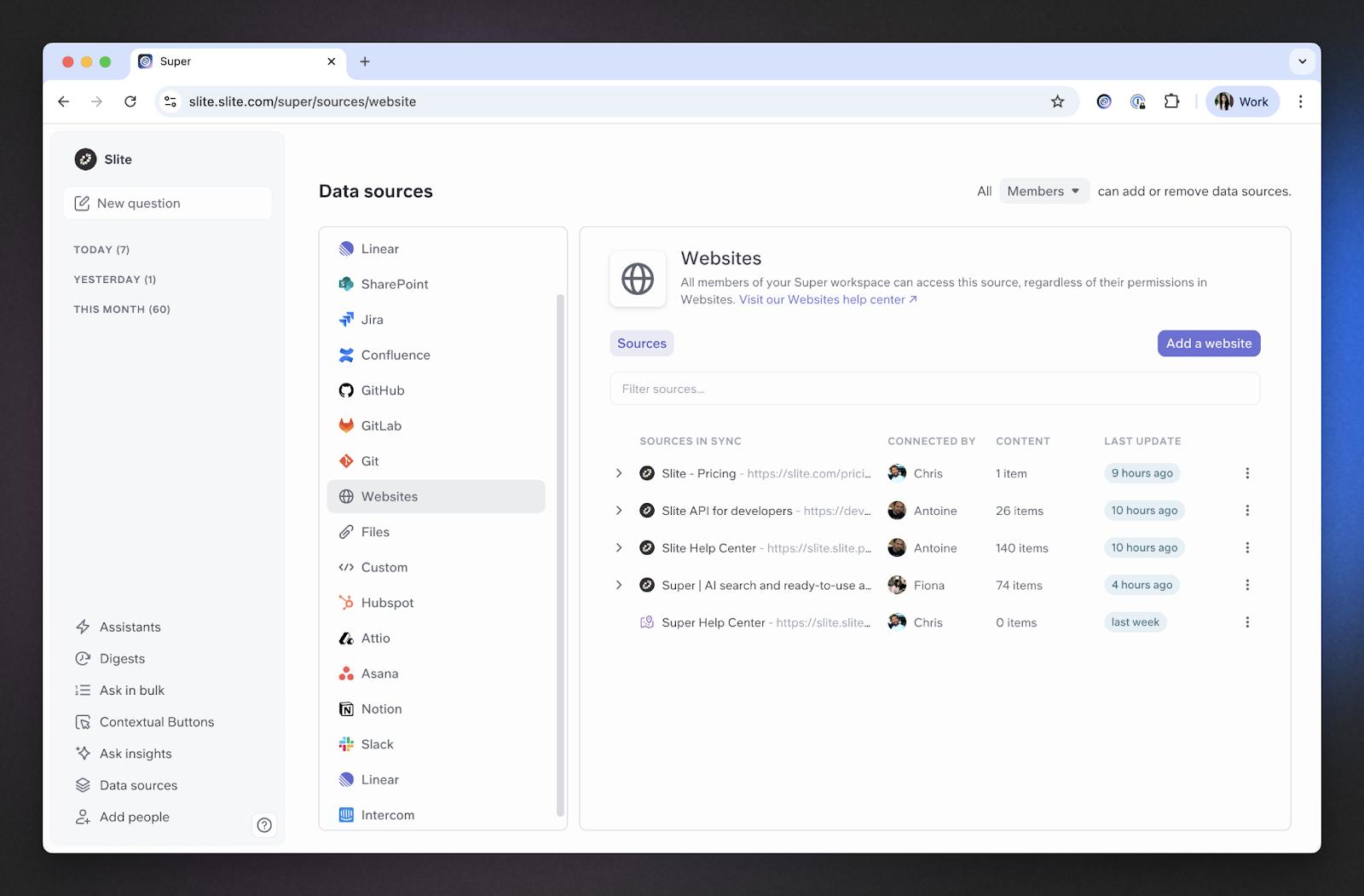
Digests automatically compile information from across your tools and turn it into structured documentation on a schedule. Instead of manually gathering updates from Slack, Notion, Linear, GitHub, and your support system, Digests do it for you.
Here's how it works:
- Connect your tools – Link Slack channels, Notion pages, Linear projects, GitHub repos, or support tickets
- Set your schedule – Choose daily, weekly, or custom intervals
- Define what to capture – Tell Super what information matters (completed tasks, customer feedback, code changes, etc.)
- Get formatted documentation – Super compiles everything into a clean, organized document automatically
Teams use Digests to automate:
- Weekly sprint summaries that pull completed tickets, code commits, and team discussions into one document
- Customer feedback reports that aggregate support tickets, feature requests, and user comments
- Product updates that compile release notes, bug fixes, and new features
- Team status reports that summarize what each person or team accomplished
- Meeting notes that capture decisions, action items, and key discussions from Slack threads
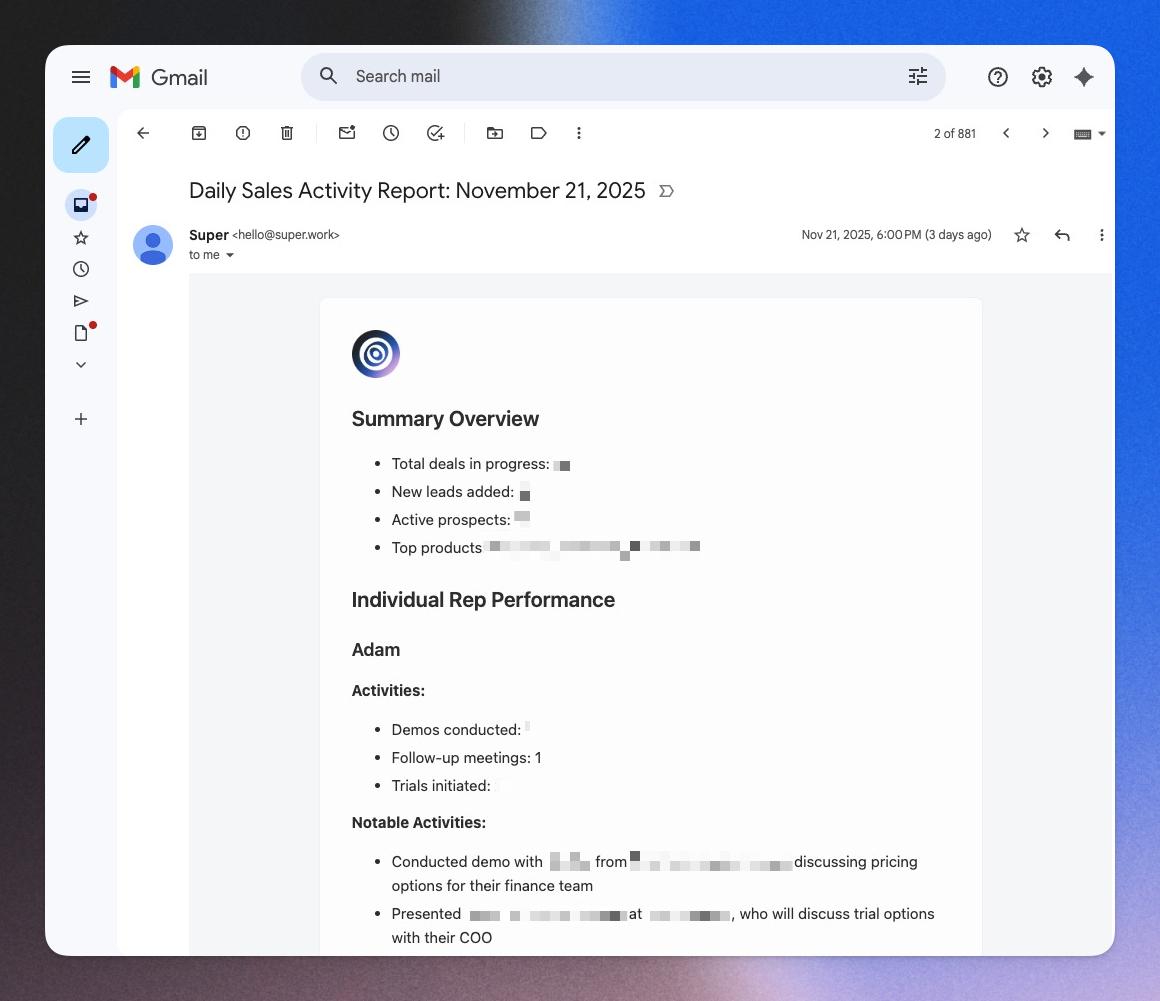
The interface makes it easy to see what's being tracked and adjust your digest settings as your needs change. You can preview the digest structure before it runs and make sure it's capturing exactly what you need.
Best practices for document workflow management
Once you've set up your automated workflows, follow these best practices to keep them running smoothly:
Use metadata to keep documents organized
Add tags, categories, dates, and owners to every document. This metadata makes searching easier and helps your automation tools route documents correctly. For example, tagging a document with "Q1-2025" and "Sales" makes it instantly findable and helps automated reports pull the right information.
Define ownership and access from day one
Every document should have a clear owner who's responsible for its accuracy and maintenance. Set permissions so only the right people can edit sensitive documents, but make sure information is accessible to everyone who needs it. Nothing kills productivity faster than having to request access to a document you need right now.
Create templates for documents you use repeatedly
If you create the same type of document more than once a month, it deserves a template. Templates ensure consistency, save time, and make automation much easier. Include clear instructions in your templates so anyone on the team can use them correctly.
Use notifications thoughtfully
Automated notifications are powerful, but too many become noise. Only send notifications when action is required or when something important changes. Let people choose how they want to be notified—email, Slack, or in-app—and respect their preferences.
Review workflows regularly
Your processes will change as your team grows and your business evolves. Schedule quarterly reviews of your automated workflows to identify what's working and what needs adjustment. Look at metrics like completion time, error rates, and user feedback to guide improvements.
Common mistakes when automating document workflows
Even with the best intentions, teams often stumble when implementing document workflow automation. Here are five mistakes to avoid:
Automating a broken process
If your current workflow is inefficient or confusing, automation will just make it faster to do the wrong thing. Fix the process first, then automate it. This is why Step 1 in our guide is auditing your current workflows—you need to understand what's broken before you can fix it.
Building workflows that are too complex too soon
Start simple. Automate one straightforward workflow, get it working reliably, and then expand. Trying to automate everything at once leads to complicated systems that break easily and are hard to maintain. Build complexity gradually as you learn what works for your team.
Forgetting about training and adoption
The best automation in the world is useless if your team doesn't use it. Invest time in training people on the new workflows, explain why the changes matter, and make it easy for them to get help when they're stuck. Change management is just as important as the technical implementation.
Overlooking permissions and access rules
Automated workflows can accidentally expose sensitive information if permissions aren't set up correctly. Before you launch any automation, verify that documents are only accessible to the right people and that your system respects existing security policies. This is especially critical for HR, finance, and legal documents.
Not checking whether the automation is actually helping
Set clear metrics before you automate and track them afterward. Are documents getting completed faster? Are there fewer errors? Is your team spending less time on manual work? If you can't measure the impact, you can't know if the automation is worth the effort. Be willing to turn off automations that aren't delivering value.
Build automated document workflows your team will actually use
Document workflow automation isn't about replacing people—it's about freeing them from repetitive tasks so they can focus on work that actually matters. When you automate the right workflows, your team spends less time on administrative overhead and more time on strategy, creativity, and customer relationships.
Start with the four-step process we outlined: audit your workflows, build a knowledge base, choose your tools, and create your first automation. Then expand gradually as you learn what works for your team.
If you want to automate documentation across your entire team without building individual workflows for every use case, Super Digests and Slite work together to compile information from all your tools and turn it into structured, searchable documentation automatically. It's the easiest way to keep everyone on the same page without the manual work.

Janhavi Nagarhalli
Janhavi Nagarhalli is a product-led Content Marketer at Factors AI. She writers about the creator economy and personal branding on Linkedin.
2016年からナレッジ共有とより良い働き方のためのソリューションを開発しています。